
Create an API Key
Create and manage your API keys for calling platform APIs
An API key is your credential for calling platform APIs. Each key can be independently configured with an expiry date, credit quota, and model permissions — making it easy to manage different projects or environments separately.
After logging in, click "API Keys" in the left navigation bar to enter the management page.
Key List
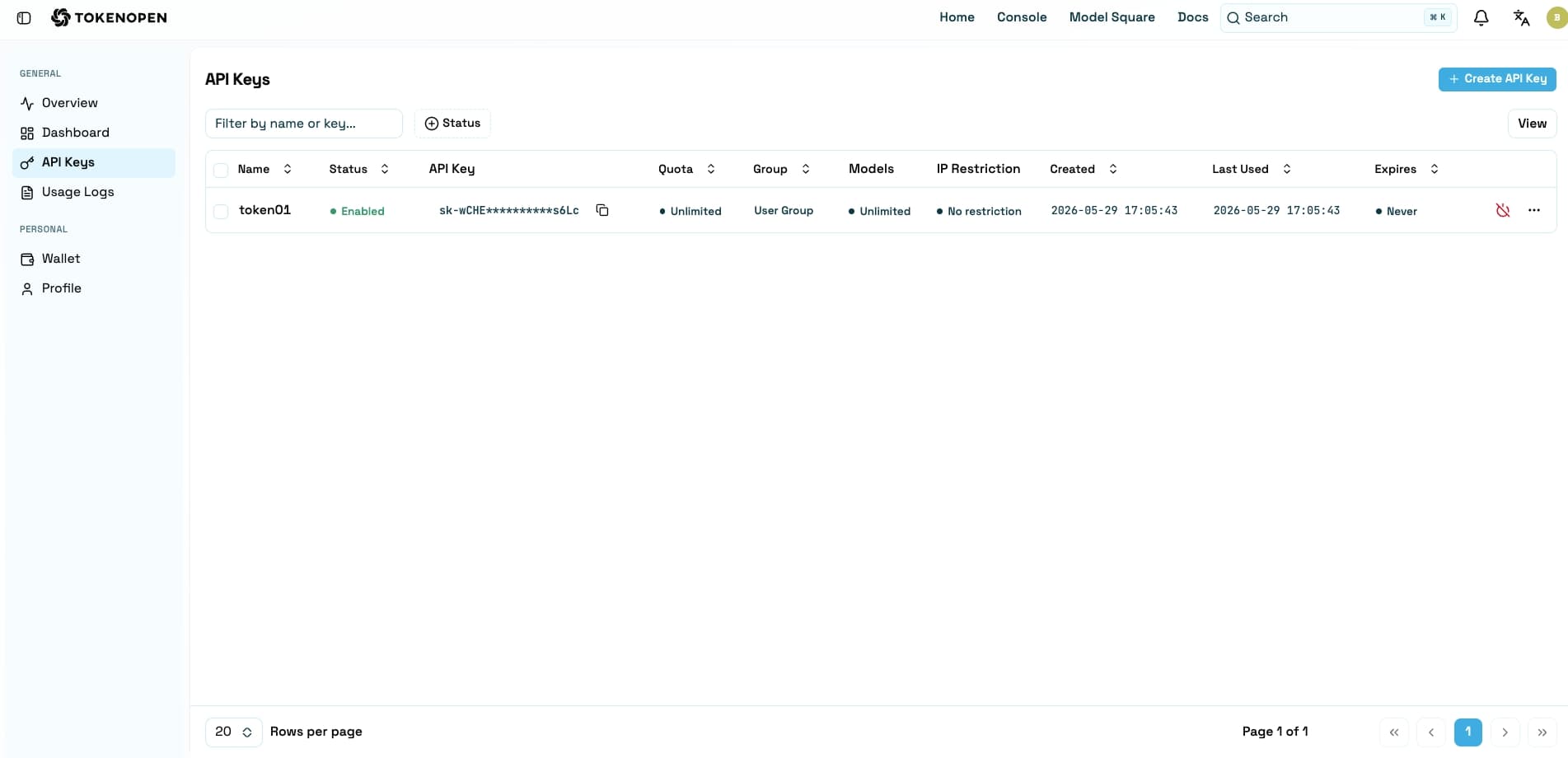
The key list shows all keys created under your account. Each record includes:
| Field | Description |
|---|---|
| Name | The label you assigned to the key |
| Status | Active / Disabled / Expired |
| Quota | The credit limit configured for this key |
| Expiry | The key's expiration date; "Permanent" if it never expires |
| IP Restriction | IP addresses allowed to use this key |
| Actions | Copy, Edit, Delete |
Create an API Key
Step 1: Open the Create Dialog
Click the "Create API Key" button in the top-right corner of the key list page.
Step 2: Fill in Basic Information
Enter a key name in the dialog — descriptive names like "Production" or "Test Project" make it easier to manage later.
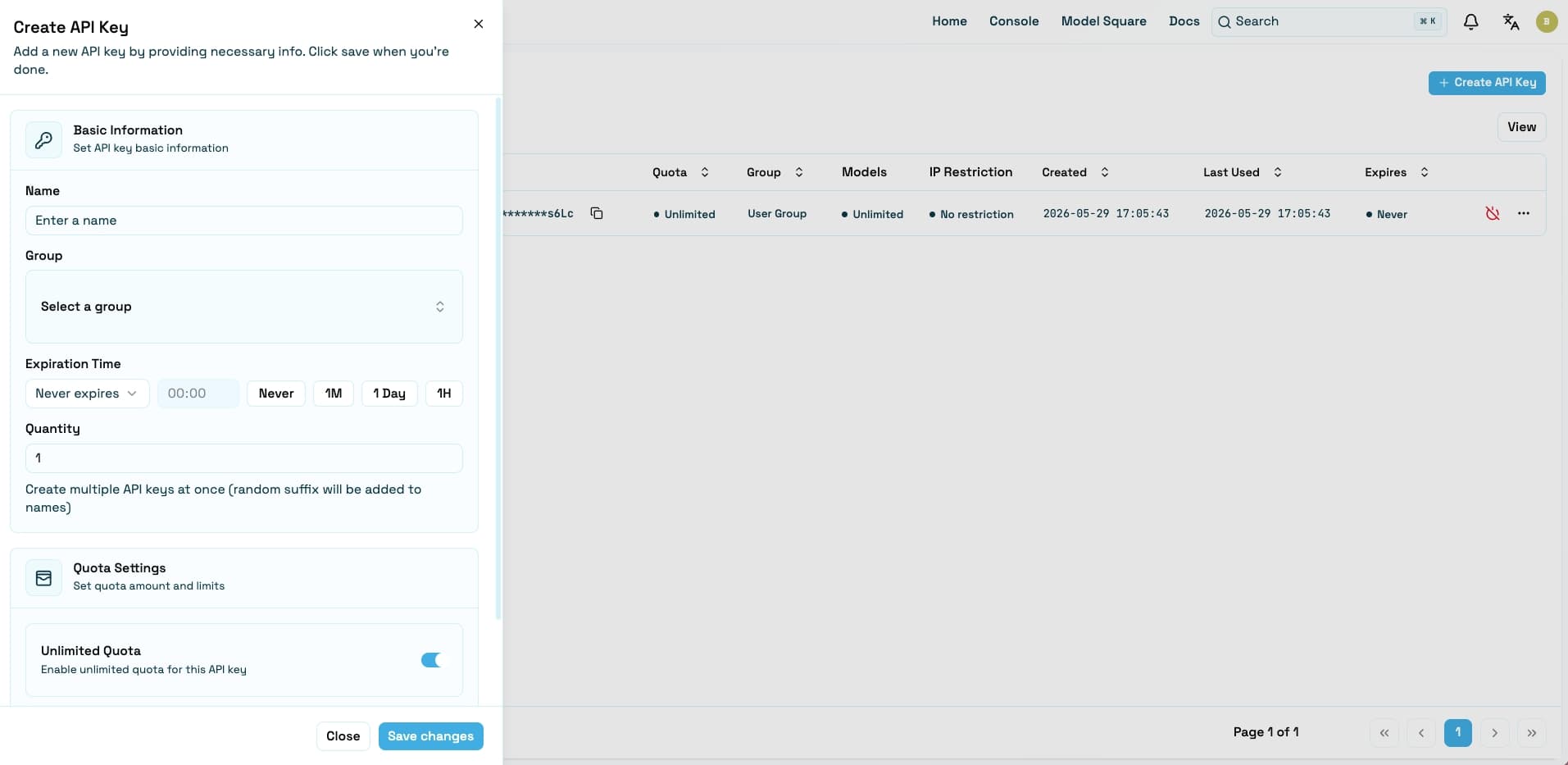
Step 3: Configure Advanced Options as Needed
| Option | Description |
|---|---|
| Expiry Date | Set the key's expiration date; leave blank for no expiry |
| Credit Limit | Cap the maximum credits this key can consume; the key deactivates when the limit is reached |
| Unlimited Credits | When enabled, the key is not subject to a credit cap (still constrained by the account-level total) |
| Group | Select the pricing group for this key (created by an admin in the backend); different groups carry different price multipliers |
| Model Restrictions | Restrict this key to specific models; leave blank for no restrictions |
| IP Whitelist | Restrict which source IPs can use this key; leave blank for no restrictions |
Step 4: Save the Key
Click "Save Changes" to create the key. You can then view it in the key list.
Do not commit API keys to code repositories or share them with others to prevent account compromise.
Copy a Key
In the key list, click the Copy button on the right side of any record to automatically copy the key to your clipboard.
Keys can be copied and viewed in the list at any time.
Edit a Key
Find the target key in the list and click "Edit" to modify the following settings:
- Name
- Expiry date
- Credit limit
- Model restrictions
- IP whitelist
The key string itself cannot be changed. To get a new key value, delete the key and create a new one.
Disable & Enable a Key
You can toggle a key's enabled/disabled state in the edit dialog:
- Disabled: The key immediately stops working for API calls, but its configuration and usage history are preserved
- Enabled: The key resumes normal operation
Delete a Key
Find the target key in the list, click "Delete", and confirm.
Deleted keys are immediately invalidated and cannot be recovered. All applications using this key will lose API access. Ensure all related applications have switched to another key before deleting.
Using a Key to Call APIs
After creating a key, pass it as a Bearer Token in your application or request headers:
Authorization: Bearer sk-xxxxxxxxxxxxxxxxFor specific API endpoints and parameters, see the API Reference.
Last updated on