
CC Switch - Unified AI CLI Manager
Use CC Switch to manage Claude Code, Codex, OpenClaw, Hermes, and other AI CLI configurations in one place
CC Switch is an open-source unified AI CLI management tool. It helps you centrally manage provider switching, model selection, and configuration for Claude Code, Codex, OpenClaw, Hermes, and other clients, reducing the cost of manual config file changes.
Most AI CLI tools require you to restart the terminal or the corresponding CLI after switching configurations. Claude Code usually supports hot switching directly.
1. About CC Switch
- Manage providers, models, and API endpoints for multiple AI CLI tools in one place
- Supports graphical switching and reduces the need to manually edit
json,toml, and.envfiles - Suitable for workflows that use Claude Code, Codex, OpenClaw, and Hermes together
2. Download
- Official website: https://ccswitch.io/
- GitHub repository: https://github.com/farion1231/cc-switch
- Releases: https://github.com/farion1231/cc-switch/releases
Common installation methods:
- Windows: download the
.msiinstaller or the portable.zip - macOS: prefer the
.dmg, or usebrew install --cask cc-switch - Linux: choose
.deb,.rpm, or.AppImagebased on your system
3. AI CLI Integration
The screenshots below are based on the current UI version. Button positions or labels may differ slightly across versions, but the overall flow is the same: create a Provider first, then fill in the API configuration and enable it.
Claude Code
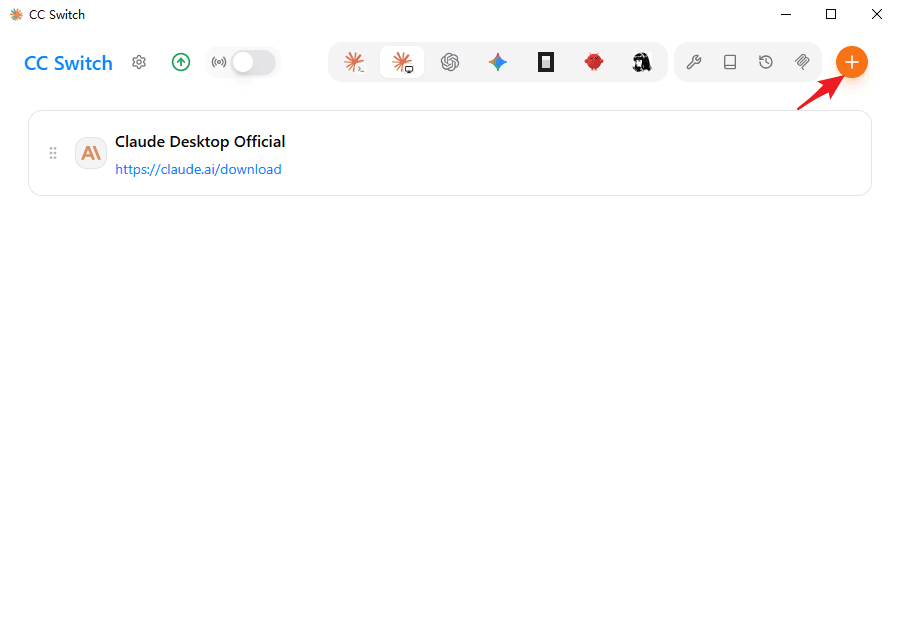
- Open CC Switch and create or import a Provider
- Choose Claude Code as the target tool
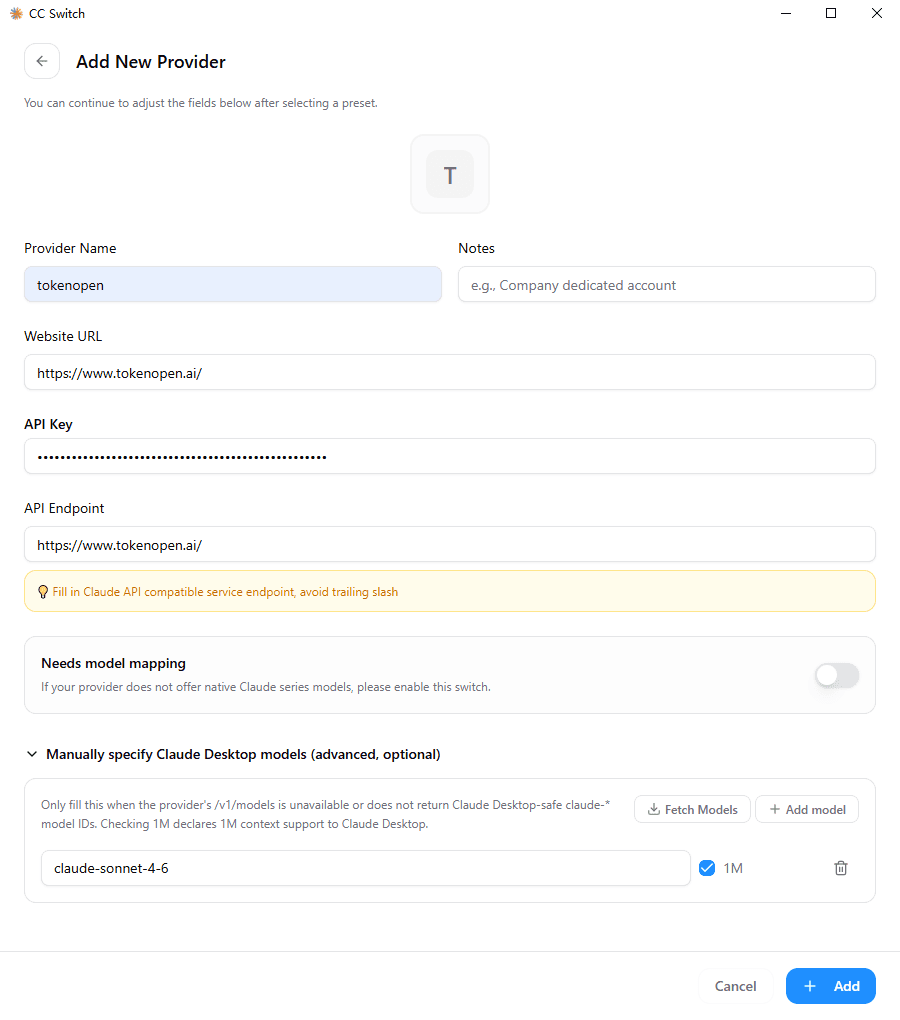
- Fill in the API Key, Base URL, model, and other settings
- Enable the Provider, then return to Claude Code
Recommended settings:
Base URL: https://www.tokenopen.ai
API Key: sk-your-token
Model: claude-sonnet-4-6 / any other enabled model
Add Provider:
Fill in API settings:
Codex
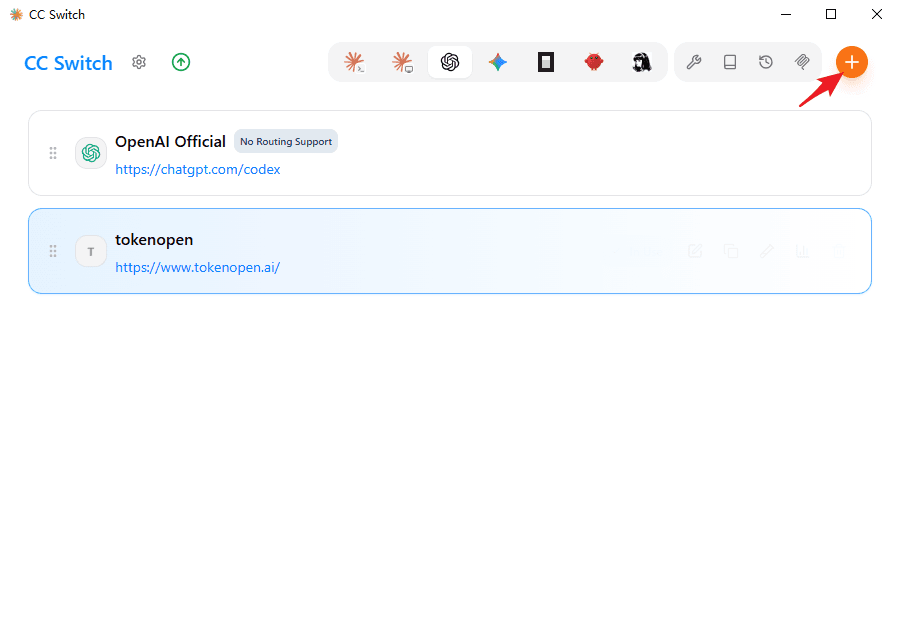
- Create or duplicate a Provider in CC Switch
- Choose Codex as the target tool
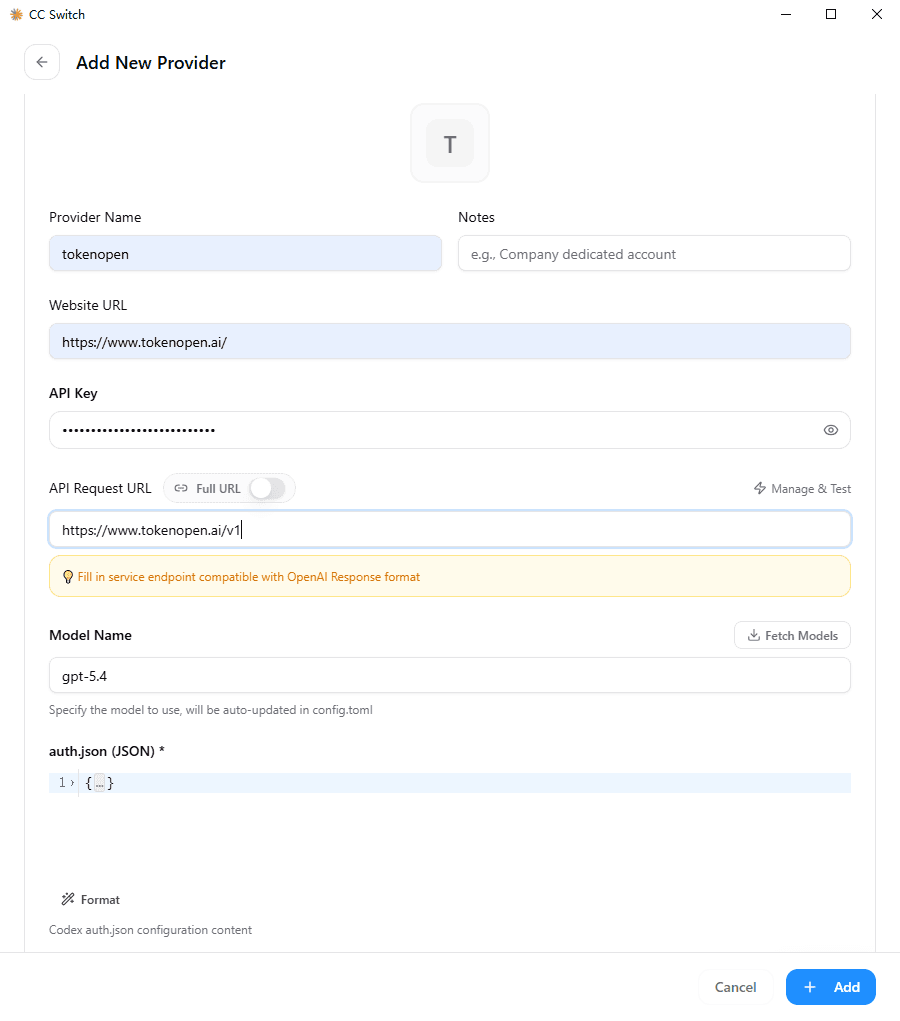
- Configure the OpenAI-compatible endpoint, API Key, and model
- Enable it, then restart Codex CLI
Recommended settings:
Base URL: https://www.tokenopen.ai/v1
API Key: sk-your-token
Model: gpt-5.4 / gpt-5.5 / any other enabled model
Add Provider:
Fill in API settings:
OpenClaw
- Create a new Provider in CC Switch
- Choose OpenClaw as the target tool
- Fill in the API endpoint, key, and model
- Enable it, then reopen OpenClaw
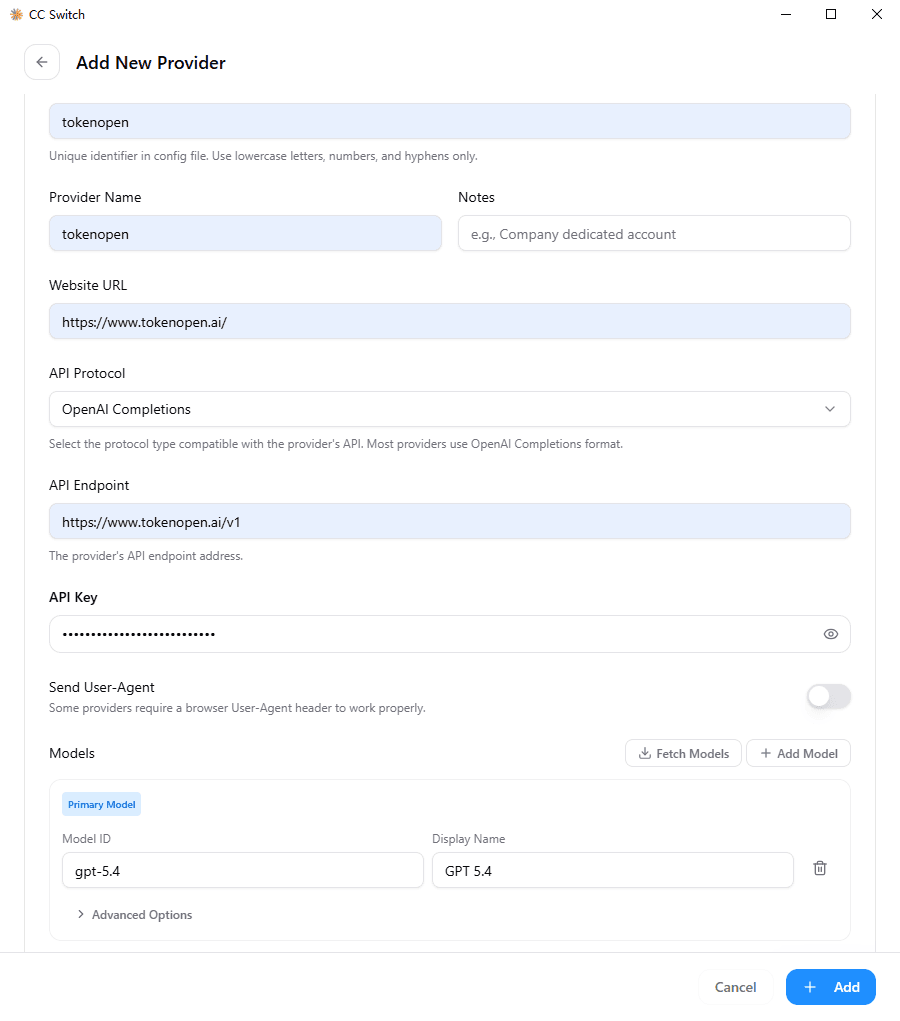
Recommended settings:
Base URL: https://www.tokenopen.ai/v1
API Key: sk-your-token
Model: gpt-5.4 / claude-sonnet-4-6 / any other enabled model
Add Provider:
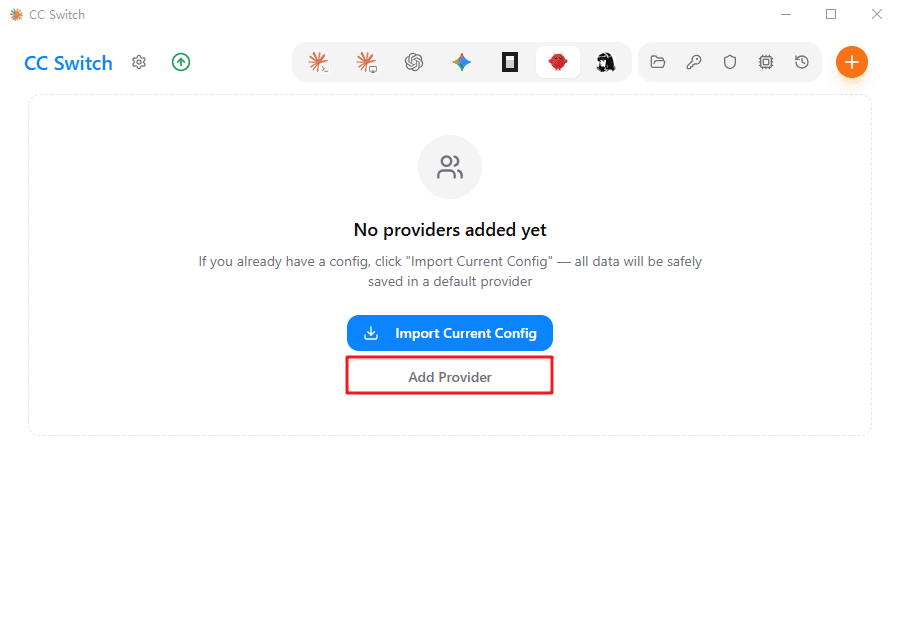
Fill in API settings:
Hermes
- Create a Provider in CC Switch
- Choose Hermes as the target tool
- Configure the Base URL, API Key, and default model
- Enable the configuration, then restart Hermes CLI or the related process
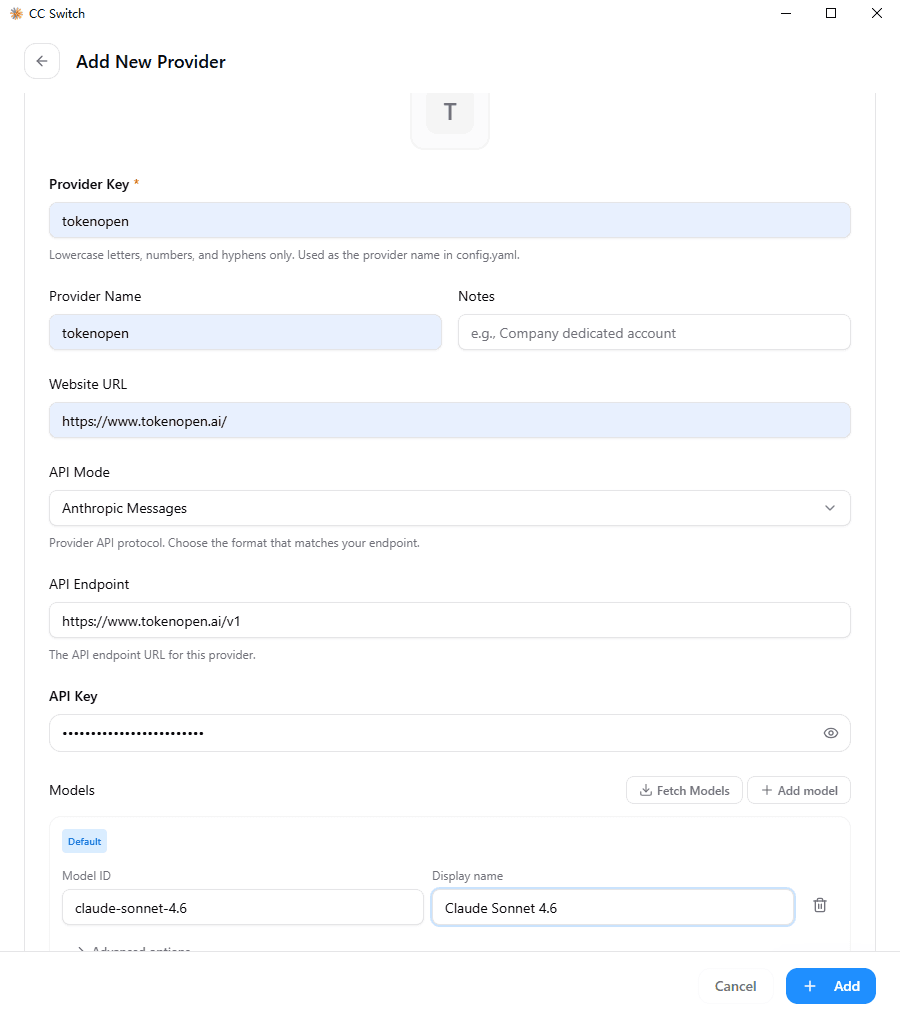
Recommended settings:
Base URL: https://www.tokenopen.ai/v1
API Key: sk-your-token
Model: gpt-5.5 / claude-sonnet-4-6 / other long-context models
Add Provider:
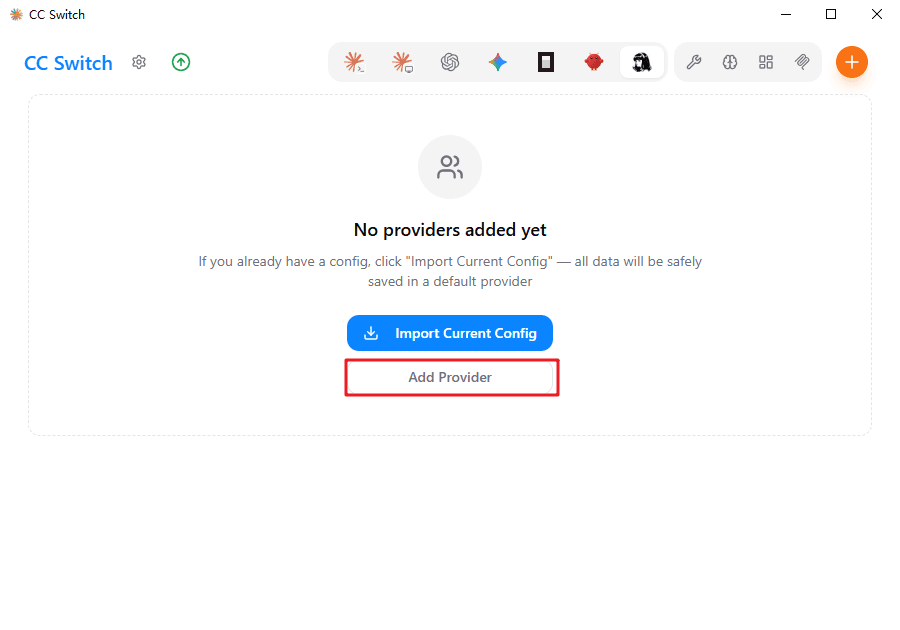
Fill in API settings:
Notes
- If one Provider needs to be reused across multiple tools, prefer maintaining it centrally inside CC Switch
- OpenAI-compatible tools usually use
https://www.tokenopen.ai/v1 - Claude-compatible tools usually use
https://www.tokenopen.ai
Last updated on