
Using TOKENOPEN API with GitHub Copilot
Configure VS Code so GitHub Copilot Chat uses models provided by TOKENOPEN
GitHub Copilot is GitHub's official AI coding assistant, deeply integrated into VS Code. It supports inline code completion, Chat conversations, code explanations, and more. By configuring a custom model endpoint, you can make Copilot Chat use any model available on the TOKENOPEN platform.
This configuration applies to GitHub Copilot Chat custom models only. It requires VS Code 1.99+ and GitHub Copilot extension 1.320+. Inline code completion continues to use GitHub's official models and is not affected by this configuration.
Step 1: Install GitHub Copilot Extensions
Search and install the following in the VS Code Extensions Marketplace:
- GitHub Copilot (inline code completion)
- GitHub Copilot Chat (chat interface)
Or install from the terminal:
code --install-extension GitHub.copilot
code --install-extension GitHub.copilot-chat
After installation, follow the prompts to sign in with your GitHub account.
Step 2: Configure TOKENOPEN API
Get an API Key
Log in to the TOKENOPEN Console, navigate to the API Keys page, and create or copy a key.
Configure VS Code Settings
Open the VS Code Chat panel and click the settings button:
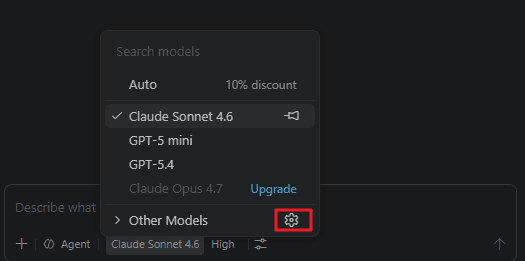
Select Custom Endpoint:
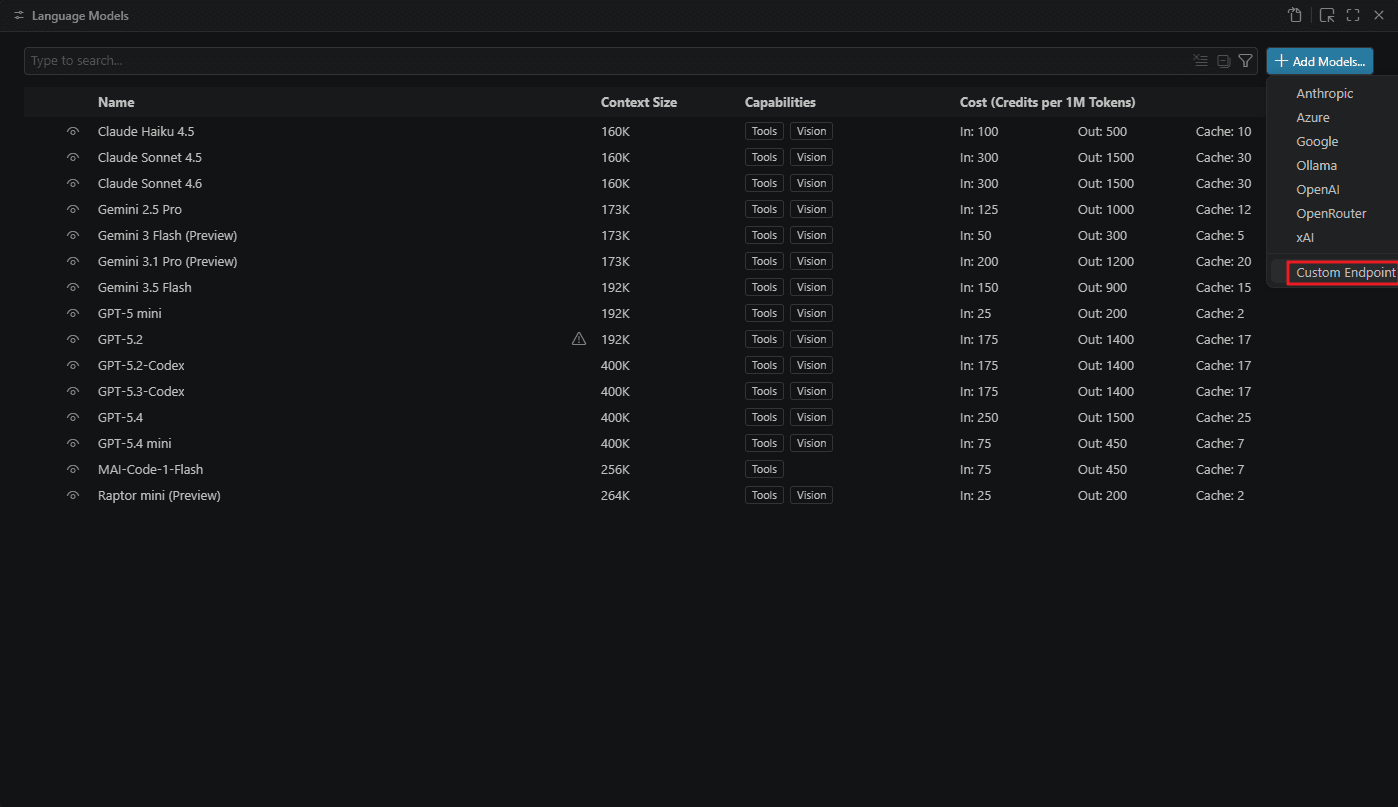
Enter a custom name and your API key when prompted. After pressing Enter, a chatLanguageModels.json file will open: paste the following:
Replace the sample apiKey below with the actual apiKey reference generated in your own chatLanguageModels.json. Do not copy ${input:chat.lm.secret.48efde6a} directly from this example.
[
	{
		"name": "TOKENOPEN-GPT5.5",
		"vendor": "customendpoint",
		"apiKey": "${input:chat.lm.secret.48efde6a}",
		"apiType": "chat-completions",
        "models": [
            {
                "id": "model ID, e.g. gpt-5.5",
                "name": "model name, e.g. GPT-5.5",
                "url": "https://www.tokenopen.ai/v1/chat/completions",
                "toolCalling": true,
                "vision": true,
                "maxInputTokens": 128000,
                "maxOutputTokens": 16000,
                "streaming": true,
                "thinking": true,
                "reasoningEffortFormat": "chat-completions"
            }
        ]
	},
    {
		"name": "TOKENOPEN-GPT5.4",
		"vendor": "customendpoint",
		"apiKey": "${input:chat.lm.secret.48efde6a}",
		"apiType": "chat-completions",
        "models": [
            {
                "id": "model ID, e.g. gpt-5.4",
                "name": "model name, e.g. GPT-5.4",
                "url": "https://www.tokenopen.ai/v1/chat/completions",
                "toolCalling": true,
                "vision": true,
                "maxInputTokens": 128000,
                "maxOutputTokens": 16000,
                "streaming": true,
                "thinking": true,
                "reasoningEffortFormat": "chat-completions"
            }
        ]
	}
]
The JSON array supports multiple model objects — each object corresponds to one model, and all configured models will appear in the Copilot Chat model selector. The example above includes gpt-5.5 and gpt-5.4; add or remove entries as needed.
Step 3: Use GitHub Copilot Chat
Switch Models
After configuration, open the Copilot Chat panel (Ctrl+Alt+I), click the model selector at the bottom-left of the chat input, and choose a TOKENOPEN model from the list.
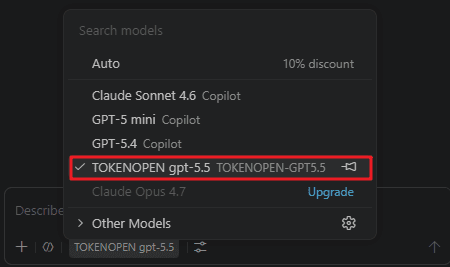
Start Chatting
Once a model is selected, you can ask questions directly in Chat — all requests will be routed through the TOKENOPEN API:
@workspace Analyze the architecture of this project/explain Explain the selected code/fix Fix the bug in the current fileCommon Features
| Feature | Description |
|---|---|
Ctrl+I | Inline Edit |
Ctrl+Alt+I | Open Copilot Chat panel |
/explain | Explain selected code |
/fix | Fix code issues |
/tests | Generate unit tests |
/doc | Generate documentation comments |
@workspace | Ask questions about the entire workspace |
Supported models on TOKENOPEN (examples):
| Model ID | Description |
|---|---|
gpt-5.5 | GPT-5.5, latest flagship model |
gpt-5.4 | GPT-5.4, balanced performance & cost |
gpt-5.4-mini | GPT-5.4 Mini, low-latency lightweight model |
claude-sonnet-4-6 | Claude Sonnet 4.6, balanced model |
o3 | OpenAI o3, strong reasoning model |
For the full model list and pricing, visit the Model Marketplace.
Last updated on