
Using TOKENOPEN API with Codex CLI
Use OpenAI Codex CLI with TOKENOPEN API to access platform models directly from your terminal
Codex CLI is OpenAI's official open-source command-line coding agent. It can read and write files, execute shell commands, and complete complex programming tasks directly in your terminal. By pointing it at the TOKENOPEN API endpoint, you can seamlessly use all models available on the platform.
Step 1: Install Codex CLI
Prerequisite: Node.js 22+
# Add NodeSource repository
sudo curl -fsSL https://deb.nodesource.com/setup_lts.x | sudo -E bash -

# Install Node.js
sudo apt-get install -y nodejs
Verify the Node.js installation:
node --version
npm --version
Install Codex CLI:
npm install -g @openai/codexVerify the installation:
codex --versionOption 1: Homebrew (recommended)
brew install --cask codexOption 2: npm
npm install -g @openai/codexVerify the installation:
codex --versionRun in PowerShell:
powershell -ExecutionPolicy ByPass -c "irm https://chatgpt.com/codex/install.ps1 | iex"Or install via npm:
npm install -g @openai/codexVerify the installation:
codex --versionCodex CLI supports macOS, Linux, and Windows (native or WSL2). Make sure Node.js 22+ is installed before proceeding.
Step 2: Configure TOKENOPEN API
Codex CLI uses ~/.codex/config.toml to manage the API connection.
Get an API Key
Log in to the TOKENOPEN Console, navigate to the API Keys page, and create or copy a key.
Configure TOKENOPEN API
Create the config directory and open ~/.codex/config.toml:
mkdir -p ~/.codex
vim ~/.codex/config.toml
Add the following content:
model_provider = "proxy"
model = "gpt-4o"
disable_response_storage = true

[model_providers.proxy]
name = "proxy"
base_url = "https://www.tokenopen.ai/v1"
wire_api = "responses"
requires_openai_auth = false
env_key = "OPENAI_API_KEY"
Press Esc, then type :wq! to save and quit.
Set the environment variable for the current session:
export OPENAI_API_KEY="replace-with-your-api-key"To persist across sessions, add it to ~/.bashrc (bash) or ~/.profile:
echo 'export OPENAI_API_KEY="replace-with-your-api-key"' >> ~/.bashrc
source ~/.bashrc
Create the config directory and open ~/.codex/config.toml:
mkdir -p ~/.codex
vim ~/.codex/config.toml
Add the following content:
model_provider = "proxy"
model = "gpt-4o"
disable_response_storage = true

[model_providers.proxy]
name = "proxy"
base_url = "https://www.tokenopen.ai/v1"
wire_api = "responses"
requires_openai_auth = false
env_key = "OPENAI_API_KEY"
Press Esc, then type :wq! to save and quit. Alternatively, open it in TextEdit:
open -e ~/.codex/config.tomlSet the environment variable for the current session:
export OPENAI_API_KEY="replace-with-your-api-key"To persist across sessions, add it to ~/.zshrc (default shell on macOS):
echo 'export OPENAI_API_KEY="replace-with-your-api-key"' >> ~/.zshrc
source ~/.zshrc
Run the following commands in PowerShell to create the config file automatically:
New-Item -ItemType Directory -Force -Path "$env:USERPROFILE\.codex" | Out-Null

@'
model_provider = "proxy"
model = "gpt-4o"
disable_response_storage = true

[model_providers.proxy]
name = "proxy"
base_url = "https://www.tokenopen.ai/v1"
wire_api = "responses"
requires_openai_auth = false
env_key = "OPENAI_API_KEY"
'@ | Set-Content -Path "$env:USERPROFILE\.codex\config.toml" -Encoding UTF8
Set the environment variable for the current session:
$env:OPENAI_API_KEY = "replace-with-your-api-key"To persist permanently (user environment variable):
[System.Environment]::SetEnvironmentVariable("OPENAI_API_KEY", "replace-with-your-api-key", "User")Or open the config file manually in Notepad:
notepad "$env:USERPROFILE\.codex\config.toml"Step 3: Use Codex CLI
Launch Codex from inside your project directory:
codex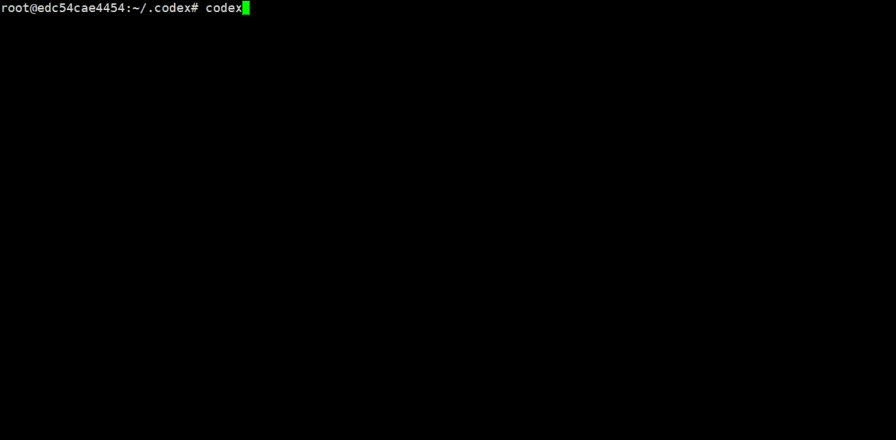
First-time Setup
On the first run, Codex will ask whether to trust the current directory:
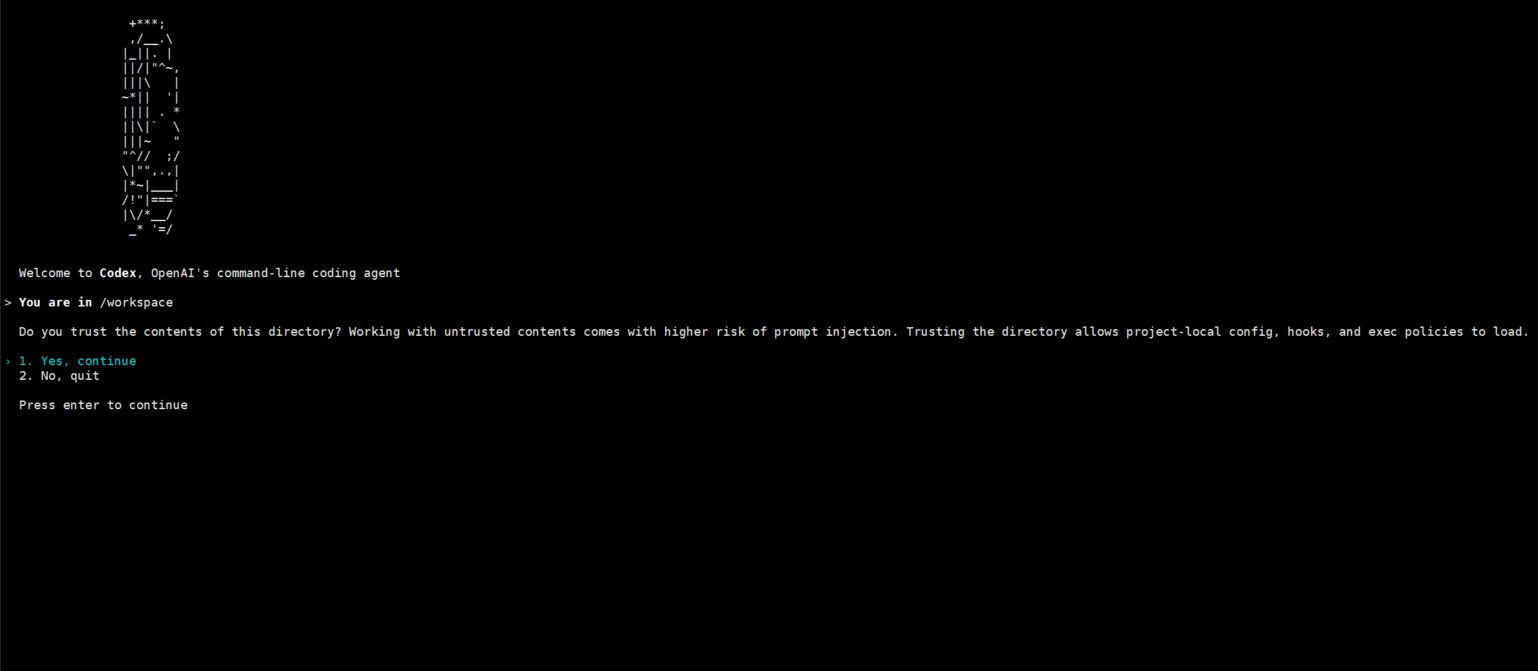
- Option 1: Allow Codex to execute in the current directory
- Option 2: Exit
Switch Models
Inside the interactive interface, type /model to switch models:
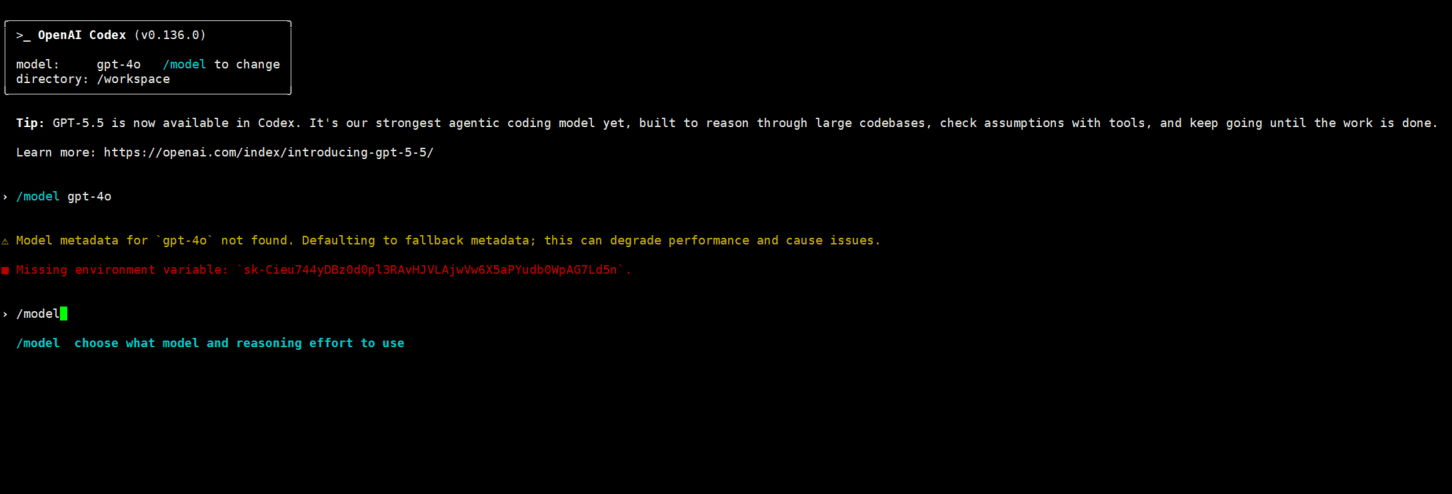
You will then be prompted to select a reasoning level:
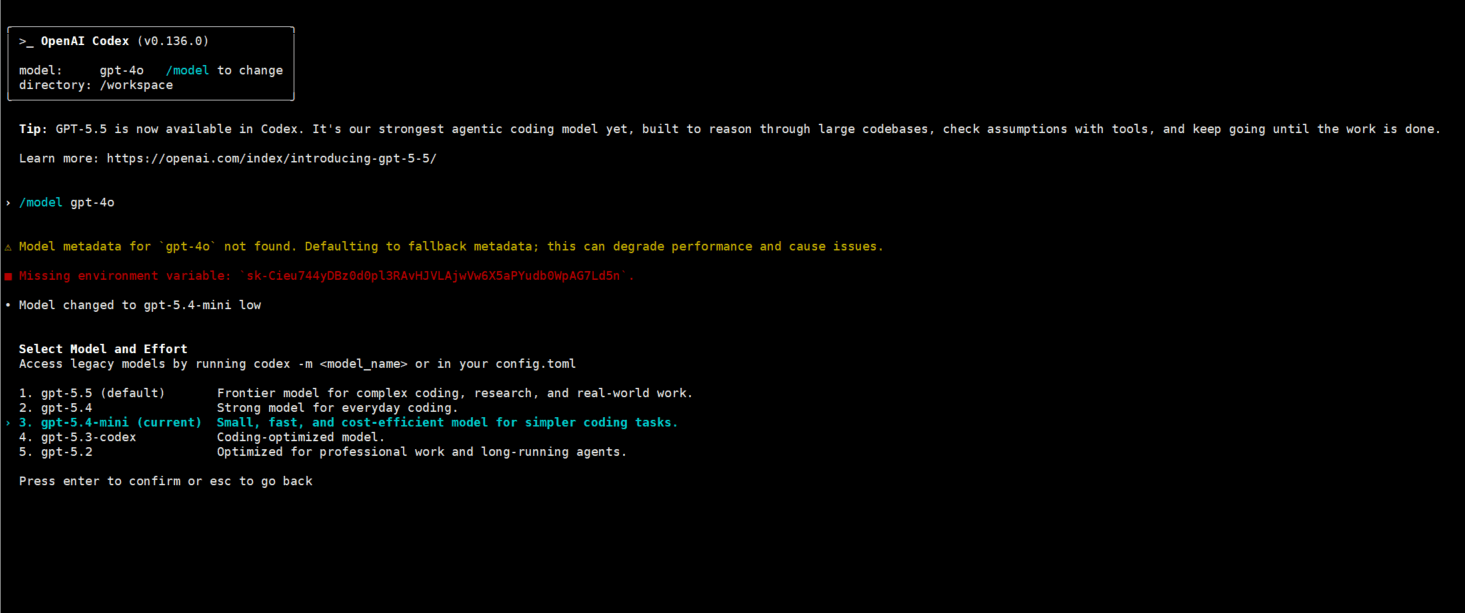
Mainstream GPT models supported on TOKENOPEN (examples):
| Model ID | Description |
|---|---|
gpt-5.5 | GPT-5.5, latest flagship model |
gpt-5.4 | GPT-5.4, balanced performance & cost |
gpt-5.4-mini | GPT-5.4 Mini, low-latency lightweight model |
| For the full model list and pricing, visit the Model Marketplace. |
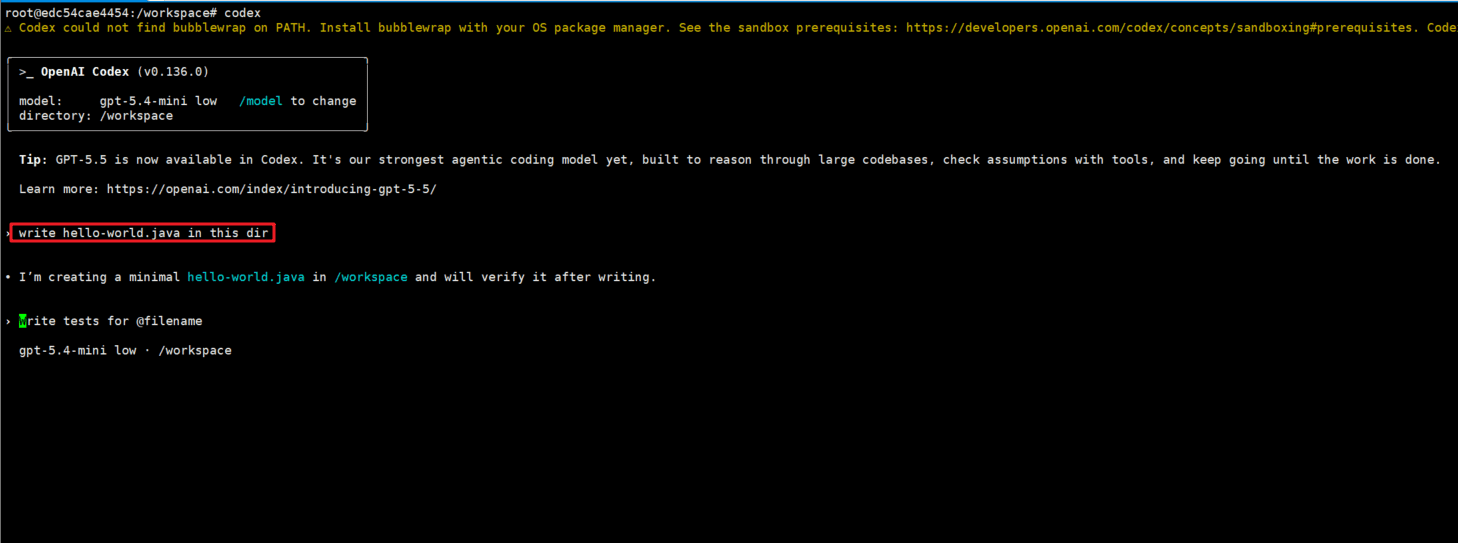
Start Chatting
Once the model is set, type your task or question in the prompt and press Enter:
Common Commands
| Command | Description |
|---|---|
/model | Switch model and reasoning level |
/init | Create an AGENTS.md config file |
/status | View current session config and token usage |
/approvals | Configure which actions require approval |
/review | Review and find issues in code changes |
Non-interactive Mode
To run a one-shot task without entering the interactive interface:
# Run a single task
codex exec "Generate a Chinese version of the README.md in the current directory"

# Non-interactive mode
codex -p "Write a bubble sort algorithm in Python"
Codex CLI can read and modify local files and execute terminal commands, making it ideal for code review, refactoring, and generating tests. Using it inside a Git repository is recommended so you can track changes.
Last updated on